# Create an Account
> Guide to creating an account on VIDEOJOBS, including sign-up methods and company setup.
Source: https://docs.videojobs.io/create-account
> For the complete documentation index, see [llms.txt](https://docs.videojobs.io/llms.txt).
# Create an Account
This page will guide you through the process of creating an account on [VIDEOJOBS](https://www.videojobs.io).
```
https://www.videojobs.io/register
```
To get started, please go to the [VIDEOJOBS](https://www.videojobs.io) home and click on the **Sign Up** in the top right corner. Or follow the link below:
## Sign Up Methods
There are two ways to sign up for an account: using your email address or your social media account.
If you have an account with LinkedIn or Google, you can sign in to your account using the same service.
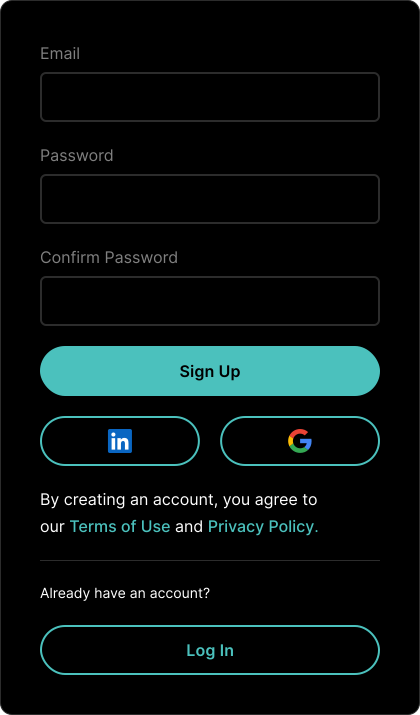
## Email Confirmation
If you have signed up using your email address, you will receive an email confirmation. Click on the link in the email to confirm your email address and activate your account.
**Outlook and Office 365 Safe Links:** Safe Links in Outlook and Office 365 blocks certain links as a security measure to protect against phishing and malicious content. To proceed, please copy and paste the link from the email into your browser to activate your account.
# Complete your account
Once you log in, you will be redirected to the account page. Here you can complete your account by adding your personal information. Then you need to create a company profile.
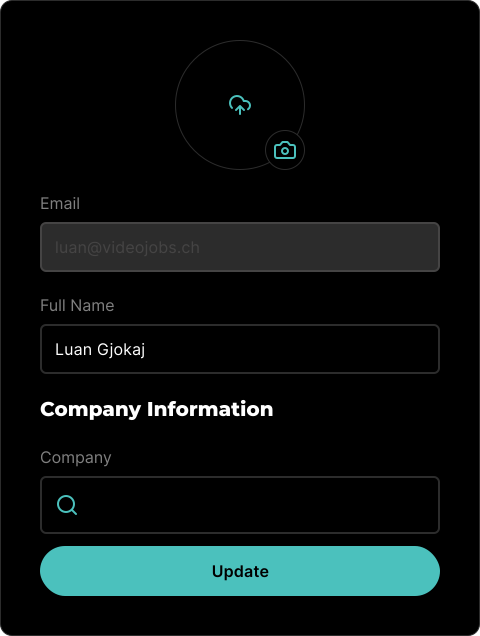
- Add a profile picture.
- Type your full name.
# Company Information
In the following example we will create a new company. However you can also join an existing company as a member with publishing rights, to read more about this, please visit [Team Accounts](/team-accounts).
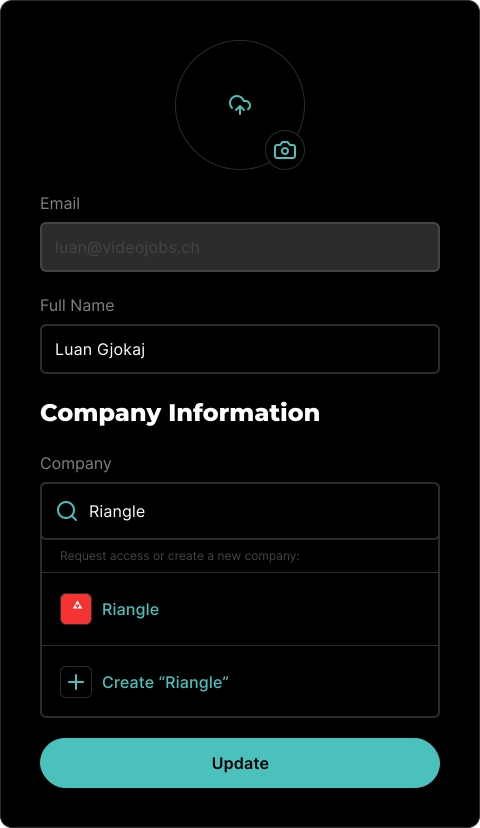
- Type a company name and click on the **Create** button.
The user that created the company profile will be automatically assigned as the super admin. The super admin can manage additional [Team Accounts](/team-accounts) and allow other users to join the company as members.
## Company Fields
- **Profile Image:** Upload a profile image for your company.
- **Company Page URL:** Set the web address for accessing your company's profile (e.g., my-company-name).
- **Company Website:** Enter the full URL of your company's website, including the protocol (e.g., https://www.videojobs.io).
- **Location:** Specify the headquarters of your company.
- **Team Size:** Indicate the number or range of employees in your company.
- **Categories:** Your company can be associated with up to 3 categories.
- **Bio:** A short description of your company, displayed if set.
- **Mission:** A brief description of your company's vision, displayed if set.
## Required Fields
To access the company profile and start posting job ads instantly, the only required field is:
- **Company Page URL**
## Video
Learn more about your company profile.
Learn more about creating job ads, with all its features.