# Image Block
> Learn about the Image Block for uploading and displaying images in VIDEOJOBS.
Source: https://docs.videojobs.io/image-block
> For the complete documentation index, see [llms.txt](https://docs.videojobs.io/llms.txt).
# Image Block
The Image Block allows you to upload and display one or multiple images. When you upload more than three images, they will automatically be arranged in a grid with three columns.
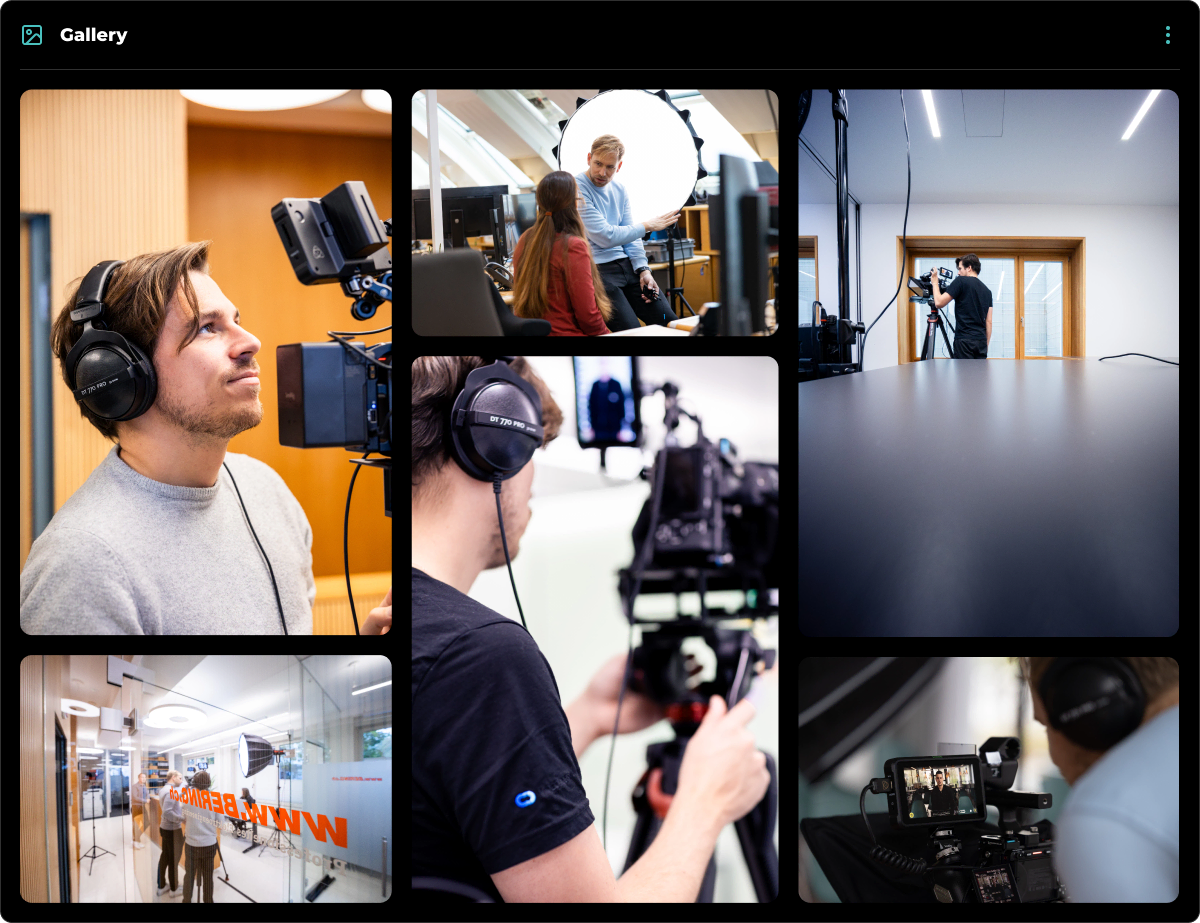
- On mobile, the images will be displayed in a carousel slider.
## Edit Mode
In edit mode, you will see some additional options available to you.
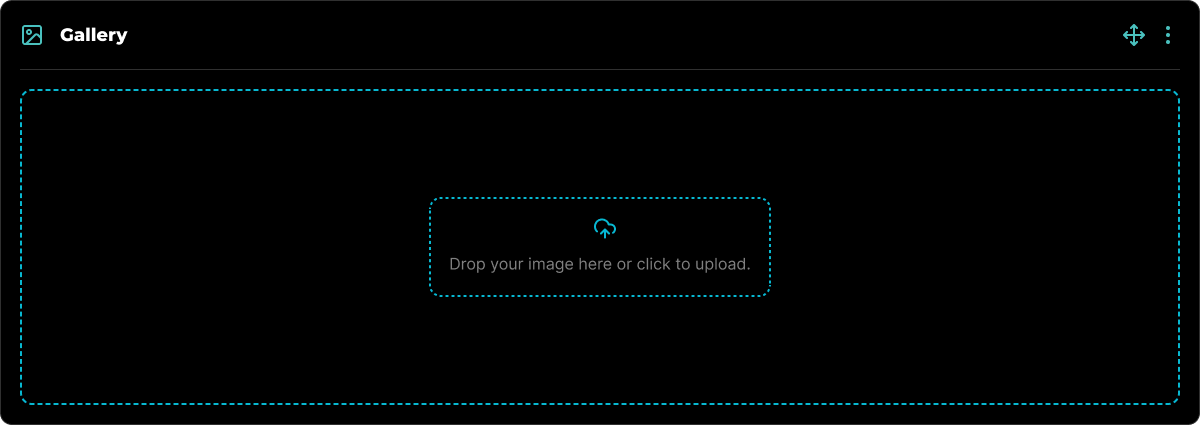
To delete an individual image, simply hover over the desired image and click the Trash icon that appears. This action will remove the selected image from the block.
All blocks, including Image Blocks, can be visually rearranged using a simple drag-and-drop interface via the icon. This allows for easy organization and customization of your content layout.
## Block Options
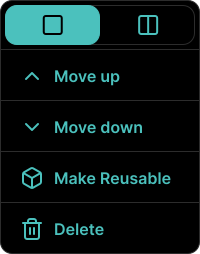
Each block comes with a set of features accessible through the three-dot icon located in the top right corner. This icon is visible when the block is in Edit mode, among other scenarios.
### Available Options
Within the block's options menu, you can:
- Toggle between half-width or full-width block.
- Move the block up.
- Move the block down.
- Make the block reusable for future use.
- Delete the block if it's no longer needed.
Learn more about Video Block, with all its features.
Learn more about Button Block, with all its features.