# VIDEOJOBS
> Full documentation for VIDEOJOBS.
---
# Introduction
> Welcome to the VIDEOJOBS documentation. Learn how to create dynamic job advertisements with rich media.
Source: https://docs.videojobs.io/
# Introduction
Welcome to the technical documentation for [VIDEOJOBS](https://www.videojobs.io), your go-to platform for creating dynamic and engaging job advertisements. [VIDEOJOBS](https://www.videojobs.io) empowers users to craft job ads that stand out by incorporating rich, interactive media, including videos and images. This documentation will guide you through every step of the process, from setting up your account to creating captivating job ads, and embedding them seamlessly on job boards or your own website.
With [VIDEOJOBS](https://www.videojobs.io), you have access to eight distinct types of blocks, each offering unique features to help you customize your job ads and communicate your message more effectively. Whether you're looking to attract top talent or showcase your company culture, our platform provides the tools you need to make a lasting impression.
In the following sections, we'll walk you through:
- **Getting Started:** An overview of [VIDEOJOBS](https://www.videojobs.io) and its features. Get to know the platform, its benefits, and how it can help you create job ads.
- **Job Ad Creation:** A step-by-step guide to creating engaging job ads using our platform. Learn how to make use of the various blocks.
- **Integrations:** How to embed your job ads on job boards, websites, and other platforms. Share all your open positions anytime, anywhere.
- **Account Management:** A comprehensive guide to managing your account, including settings, team accounts, billing, security, and support.
Let's get started on transforming your job listings into engaging multimedia experiences with [VIDEOJOBS](https://www.videojobs.io)!
Let's get started by creating an account.
Learn more about your company profile.
---
# Create an Account
> Guide to creating an account on VIDEOJOBS, including sign-up methods and company setup.
Source: https://docs.videojobs.io/create-account
# Create an Account
This page will guide you through the process of creating an account on [VIDEOJOBS](https://www.videojobs.io).
```
https://www.videojobs.io/register
```
To get started, please go to the [VIDEOJOBS](https://www.videojobs.io) home and click on the **Sign Up** in the top right corner. Or follow the link below:
## Sign Up Methods
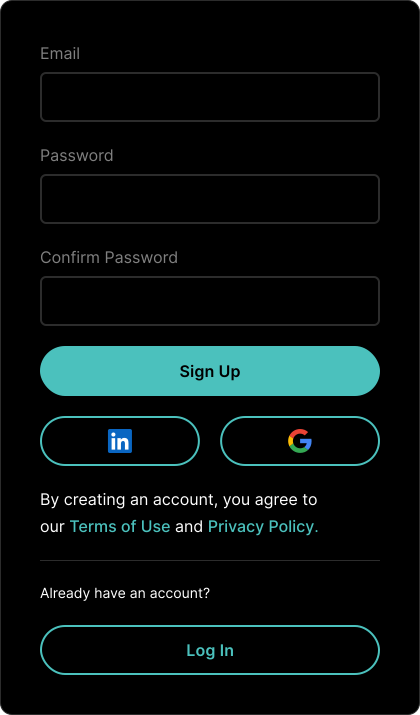
There are two ways to sign up for an account: using your email address or your social media account.
If you have an account with LinkedIn or Google, you can sign in to your account using the same service.
## Email Confirmation
If you have signed up using your email address, you will receive an email confirmation. Click on the link in the email to confirm your email address and activate your account.
**Outlook and Office 365 Safe Links:** Safe Links in Outlook and Office 365 blocks certain links as a security measure to protect against phishing and malicious content. To proceed, please copy and paste the link from the email into your browser to activate your account.
# Complete your account
Once you log in, you will be redirected to the account page. Here you can complete your account by adding your personal information. Then you need to create a company profile.
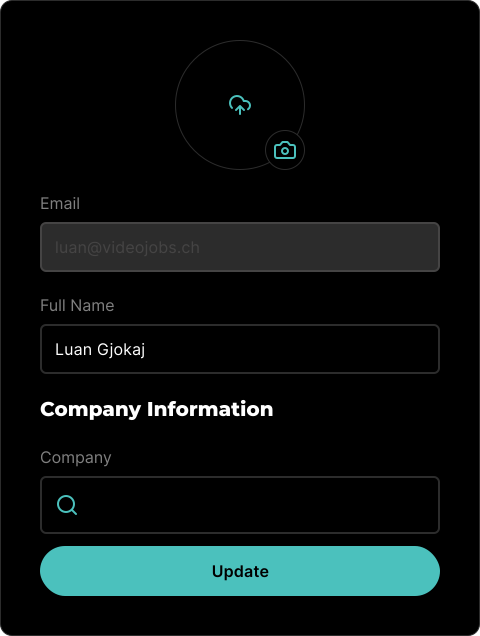
- Add a profile picture.
- Type your full name.
# Company Information
In the following example we will create a new company. However you can also join an existing company as a member with publishing rights, to read more about this, please visit [Team Accounts](/team-accounts).
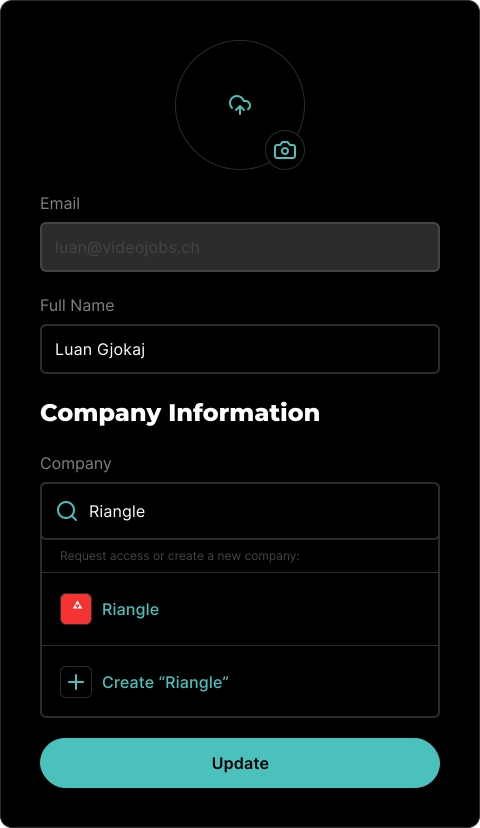
- Type a company name and click on the **Create** button.
The user that created the company profile will be automatically assigned as the super admin. The super admin can manage additional [Team Accounts](/team-accounts) and allow other users to join the company as members.
## Company Fields
- **Profile Image:** Upload a profile image for your company.
- **Company Page URL:** Set the web address for accessing your company's profile (e.g., my-company-name).
- **Company Website:** Enter the full URL of your company's website, including the protocol (e.g., https://www.videojobs.io).
- **Location:** Specify the headquarters of your company.
- **Team Size:** Indicate the number or range of employees in your company.
- **Categories:** Your company can be associated with up to 3 categories.
- **Bio:** A short description of your company, displayed if set.
- **Mission:** A brief description of your company's vision, displayed if set.
## Required Fields
To access the company profile and start posting job ads instantly, the only required field is:
- **Company Page URL**
## Video
Learn more about your company profile.
Learn more about creating job ads, with all its features.
---
# Company Profile
> Learn how to set up and customize your company profile on VIDEOJOBS.
Source: https://docs.videojobs.io/company-profile
# Company Profile
Once you have filled your company profile, you can start posting job ads instantly. To do this, you need to create a job ad. You can create a job ad by clicking on the **Create Job Ad** button on the top right corner of the page.
```
https://www.videojobs.io/company-page-url
```
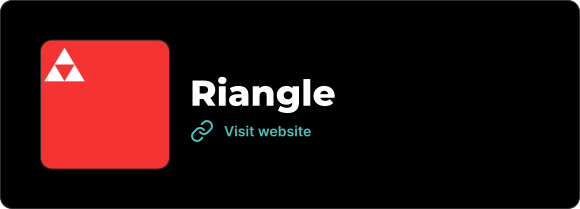
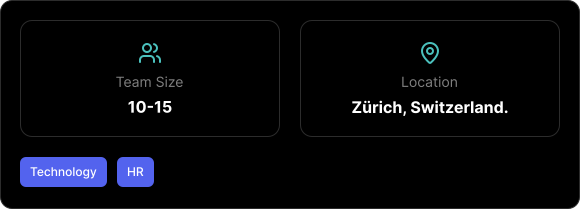
The company profile can be used as a canvas to showcase your company's culture, values, and mission. It shows the collection of job ads that are posted by the company.
## Predefined Information
The following information can be changed from the [Account](/account) page:
- Company Profile Image
- Company Name
- Company Page URL
- Company Website
- Location
- Team Size
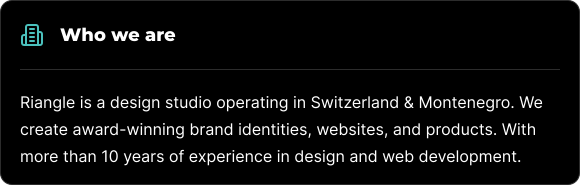
- Bio
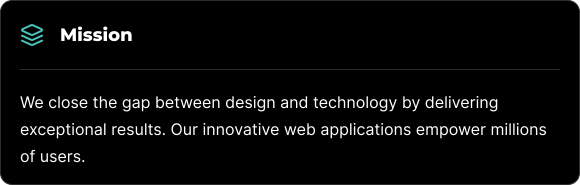
- Mission
## Create a Job Ad
To create a job ad, click on the **Add Job** button on the Jobs Block.
## Editing
You can edit the Company Profile by clicking the **Edit** button on the bottom right corner of the page, in the Action Bar.
If you are in Editing mode, a **Save** button will appear on the Action Bar at the bottom of the page. Clicking on this button will save the changes made to the Company Profile.
## Cover Image
When in Edit mode you can add or modify the cover image. The cover image will be used as a preview image for the Company Profile. It will be visible on the Company Profile page.

**Recommended size:** 1440x360 | **Aspect ratio:** 4:1
## Company Profile Blocks
The Company Profile, same as the [Job Ads](/job-ads), can be personalized to your company's needs using the VIDEOJOBS Blocks.
- [Text Block](/text-block)
- [Image Block](/image-block)
- [Video Block](/video-block)
- [Button Block](/button-block)
- [Benefits Block](/benefits-block)
- [Team Block](/team-block)
- [Contact Person Block](/contact-person-block)
- [Location Block](/location-block)
- [Reusable Blocks](/reusable-blocks)
Learn more about creating job ads, with all its features.
Learn more about Blocks, with all its features.
---
# Job Ads
> Learn how to create, edit, and publish job ads on VIDEOJOBS.
Source: https://docs.videojobs.io/job-ads
# Job Ads
Once you have filled your [Company Profile](/company-profile), you can start posting job ads instantly. There are two ways to create a job ad:
- Click the **Plus** button always visible on the page header.
- Click the **Add Job** button from the Home page or the Company Profile.
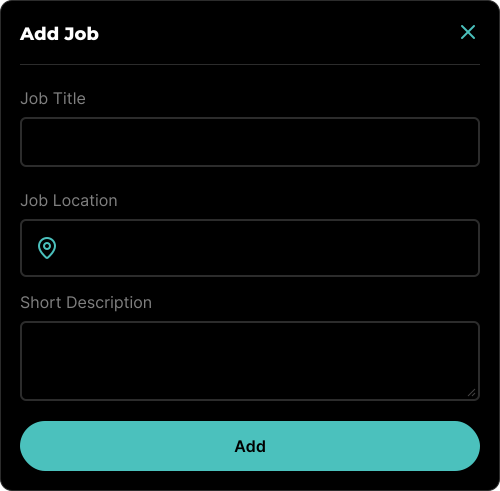
- **Job Title** - The title of the job ad, mandatory.
- **Job Location** - The location of the job ad, mandatory.
- **Job Description** - The description of the job ad, optional.
Once you hit the **Add** button, you will be redirected to the Job Ad page. Here you can edit the job ad and add more information about the position.
## Editing
You can edit the job ad by clicking the **Edit** button on the bottom right corner of the page, in the Action Bar.
If you are in Editing mode, a **Save** button will appear on the Action Bar at the bottom of the page. Clicking on this button will save the changes made to the job ad.
## Publish
Once you have finished editing the job ad, you can publish it by clicking the **Publish** button on the Action Bar.
## Job Settings
The job ad settings can be found on the Action Bar at the bottom left of the page, accessible via the settings icon.
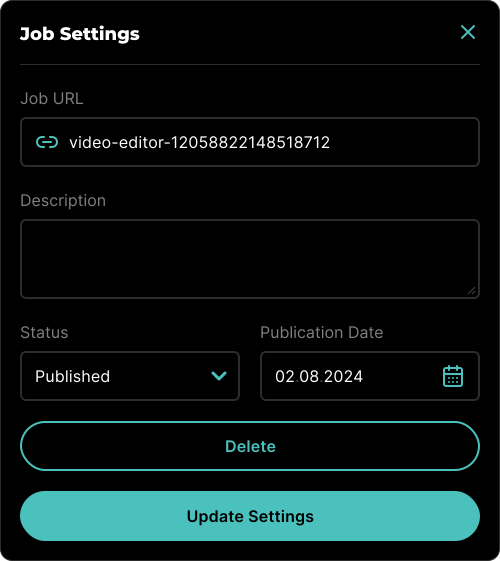
- **Job URL** - The URL of the job ad, mandatory.
- **Description** - The description of the job ad, optional.
- **Status** - The status of the job ad, draft or published.
- **Published Date** - The date when the job ad was published.
- **Delete** - Delete the job ad.
## Cover Image
When in Edit mode you can add or modify the cover image. The cover image will be used as a preview image for the Job Ad. It will be visible on the Job Ad page.

**Recommended size:** 1440x360 | **Aspect ratio:** 4:1
## Job Ad Blocks
The Job Ads, same as the [Company Profile](/company-profile), can be personalized to your company's needs using the VIDEOJOBS Blocks.
- [Text Block](/text-block)
- [Image Block](/image-block)
- [Video Block](/video-block)
- [Button Block](/button-block)
- [Benefits Block](/benefits-block)
- [Team Block](/team-block)
- [Contact Person Block](/contact-person-block)
- [Location Block](/location-block)
- [Reusable Blocks](/reusable-blocks)
## Video
Learn more about Blocks, with all its features.
Learn more about Text Block, with all its features.
---
# Create a Block
> Overview of the VIDEOJOBS block system for building job ads and company profiles.
Source: https://docs.videojobs.io/creation
# Create a Block
Blocks are versatile visual components utilized to construct various elements on your [Job Ad](/job-ads) or [Company Profile](/company-profile).
These blocks include:
- [Text Block](/text-block)
- [Image Block](/image-block)
- [Video Block](/video-block)
- [Button Block](/button-block)
- [Benefits Block](/benefits-block)
- [Team Block](/team-block)
- [Contact Person Block](/contact-person-block)
- [Location Block](/location-block)
- [Reusable Blocks](/reusable-blocks)
Each block serves a unique purpose and features a distinct appearance. They are designed with specific functionalities, offering a tailored scope for different content types. The flexibility of the VIDEOJOBS editor empowers you to easily create and customize your content using these blocks, providing a fully WYSIWYG (What You See Is What You Get) editing experience.
To start creating a block, make sure you are in **Edit** mode. To create a block, click on the **Plus** button.
Once you click the **Plus** button, you will see a list of available blocks. You can select the block you want to use, click on it and the block will be added to your content.
### Available Blocks
Add and format text content.
Upload and display images.
Upload or embed videos.
Add call-to-action buttons.
Showcase company perks.
Display team members.
Highlight a contact person.
Show a Google Maps location.
Reuse blocks across content.
---
# Text Block
> Learn about the Text Block element for creating and managing text content in VIDEOJOBS.
Source: https://docs.videojobs.io/text-block
# Text Block
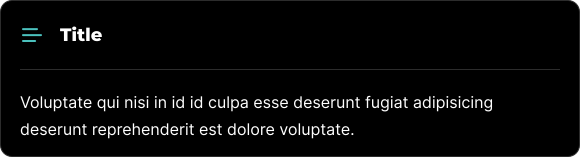
The Text Block is a fundamental element that enables you to create and manage blocks of text.
## Edit Mode
In edit mode, you will see some additional options available to you.
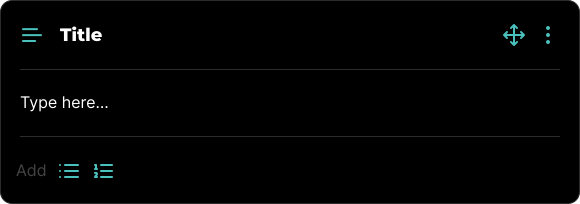
Within a Text Block, you have the flexibility to format content with unordered or ordered lists using the and icons.
All blocks, including Text Blocks, can be visually rearranged using a simple drag-and-drop interface via the icon. This allows for easy organization and customization of your content layout.
## Block Options
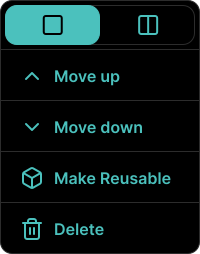
Each block comes with a set of features accessible through the three-dot icon located in the top right corner. This icon is visible when the block is in Edit mode, among other scenarios.
### Available Options
Within the block's options menu, you can:
- Toggle between half-width or full-width block.
- Move the block up.
- Move the block down.
- Make the block reusable for future use.
- Delete the block if it's no longer needed.
Learn more about Image Block, with all its features.
Learn more about Video Block, with all its features.
---
# Image Block
> Learn about the Image Block for uploading and displaying images in VIDEOJOBS.
Source: https://docs.videojobs.io/image-block
# Image Block
The Image Block allows you to upload and display one or multiple images. When you upload more than three images, they will automatically be arranged in a grid with three columns.
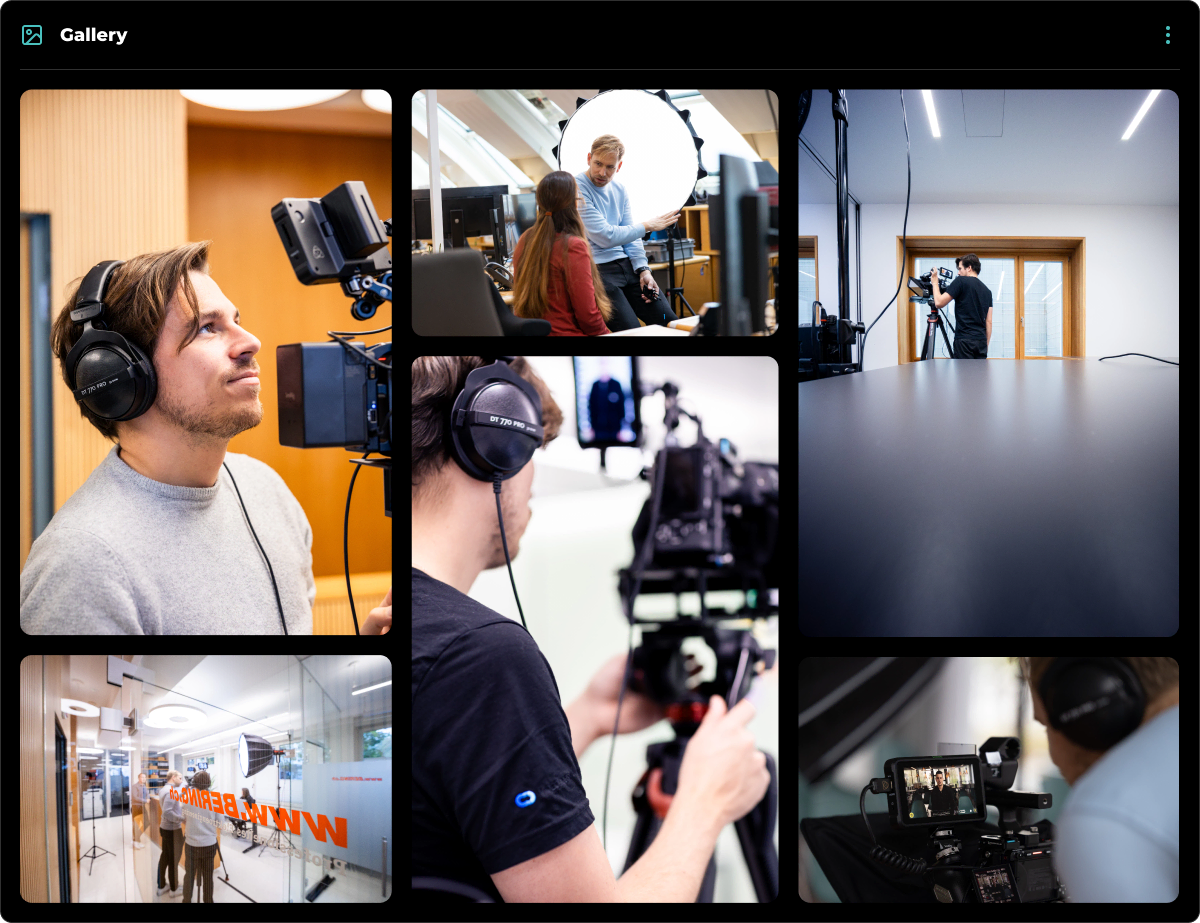
- On mobile, the images will be displayed in a carousel slider.
## Edit Mode
In edit mode, you will see some additional options available to you.
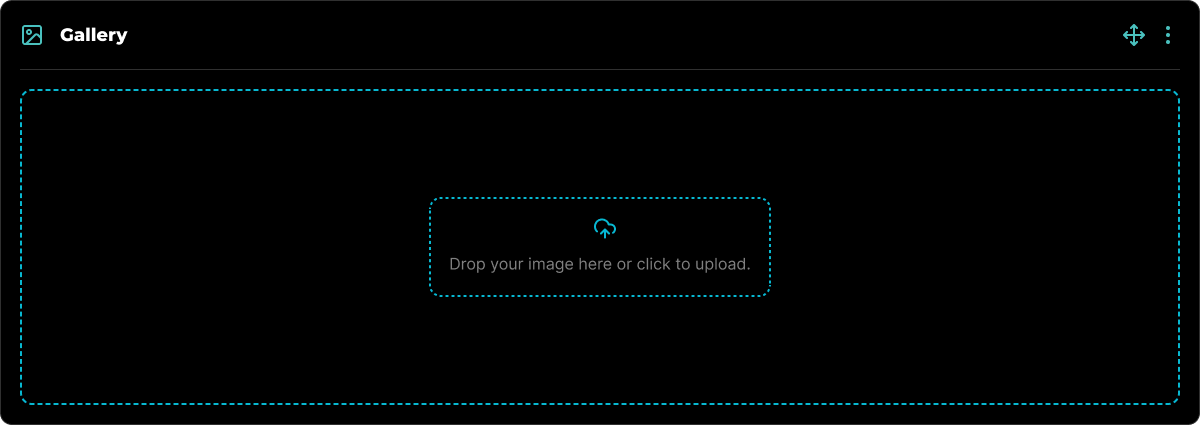
To delete an individual image, simply hover over the desired image and click the Trash icon that appears. This action will remove the selected image from the block.
All blocks, including Image Blocks, can be visually rearranged using a simple drag-and-drop interface via the icon. This allows for easy organization and customization of your content layout.
## Block Options
Each block comes with a set of features accessible through the three-dot icon located in the top right corner. This icon is visible when the block is in Edit mode, among other scenarios.
### Available Options
Within the block's options menu, you can:
- Toggle between half-width or full-width block.
- Move the block up.
- Move the block down.
- Make the block reusable for future use.
- Delete the block if it's no longer needed.

Learn more about Video Block, with all its features.
Learn more about Button Block, with all its features.
---
# Video Block
> Learn about the Video Block for uploading and embedding videos in VIDEOJOBS.
Source: https://docs.videojobs.io/video-block
# Video Block
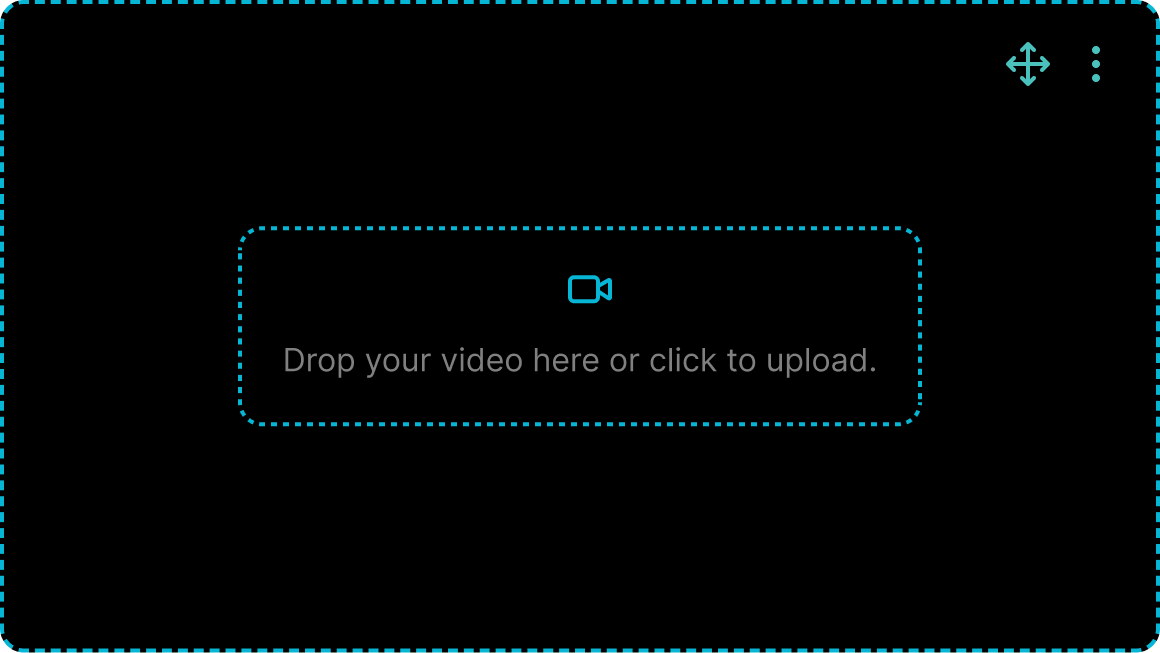
The Video Block is a distinct element designed to stand out visually from other blocks. It allows you to upload videos directly from your device or embed external videos from platforms like YouTube or Vimeo.

## Edit Mode
In edit mode, you will see some additional options available to you.
If you switch to external video from the Options Menu, you will be able to add a link from YouTube or Vimeo.
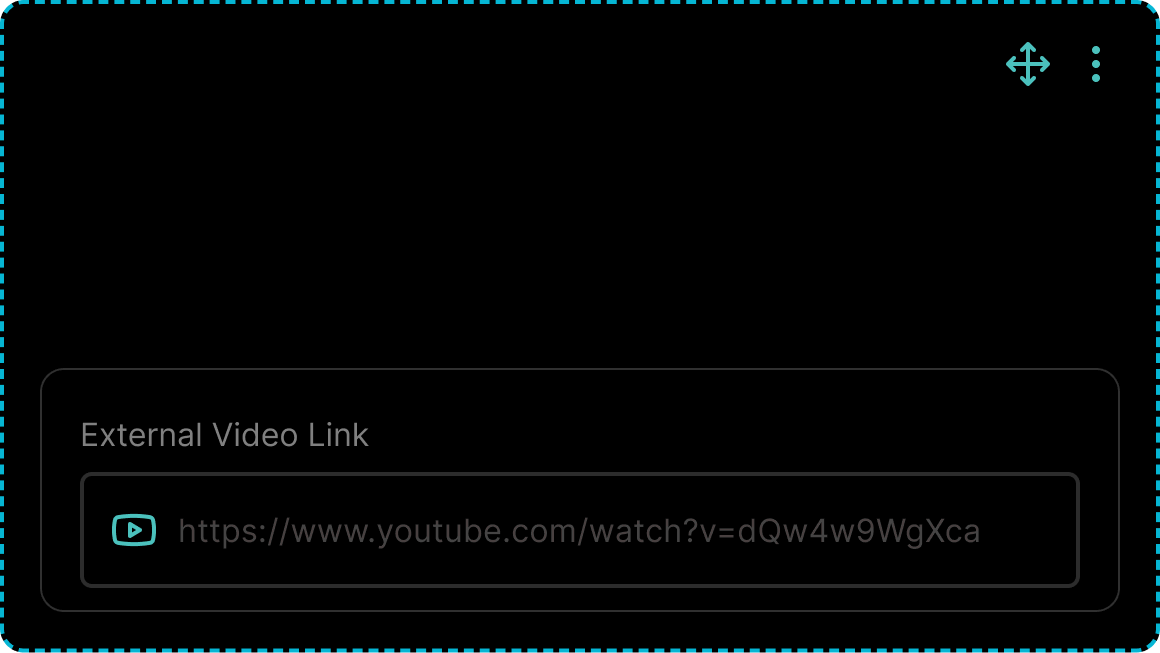
- In addition, all Video Blocks can have an optional title.
All blocks, including Video Blocks, can be visually rearranged using a simple drag-and-drop interface via the icon. This allows for easy organization and customization of your content layout.
## Block Options
Each block comes with a set of features accessible through the three-dot icon located in the top right corner. This icon is visible when the block is in Edit mode, among other scenarios.
### Available Options
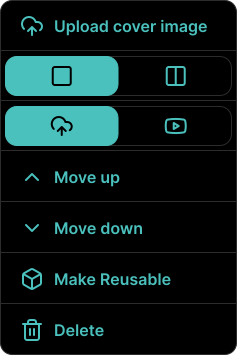
Within the block's options menu, you can:
- Upload a cover image for the video.
- Toggle between half-width or full-width block.
- Toggle between uploading or linking to an external video.
- Move the block up.
- Move the block down.
- Make the block reusable for future use.
- Delete the block if it's no longer needed.
Learn more about Button Block, with all its features.
Learn more about Benefits Block, with all its features.
---
# Button Block
> Learn about the Button Block for adding call-to-action links in VIDEOJOBS.
Source: https://docs.videojobs.io/button-block
# Button Block
The Button Block is a visually distinct element, similar to the Video Block, designed to capture attention. This block allows you to add a button that links to a specified destination, typically a form for candidates to fill out.

## Edit Mode
In edit mode, you will see some additional options available to you.

All blocks, including Button Blocks, can be visually rearranged using a simple drag-and-drop interface via the icon. This allows for easy organization and customization of your content layout.
## Analytics Tracking
Each click on the button is tracked, providing you with insights into how many people have applied or interacted with the button.
## Block Options
Each block comes with a set of features accessible through the three-dot icon located in the top right corner. This icon is visible when the block is in Edit mode, among other scenarios.
### Available Options
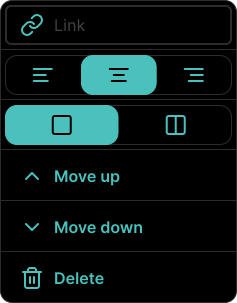
Within the block's options menu, you can:
- Link to a form or an external website.
- Toggle between left, center, and right alignment.
- Toggle between half-width or full-width block.
- Move the block up.
- Move the block down.
- Delete the block if it's no longer needed.
Learn more about Benefits Block, with all its features.
Learn more about Team Block, with all its features.
---
# Benefits Block
> Learn about the Benefits Block for showcasing company perks in VIDEOJOBS.
Source: https://docs.videojobs.io/benefits-block
# Benefits Block
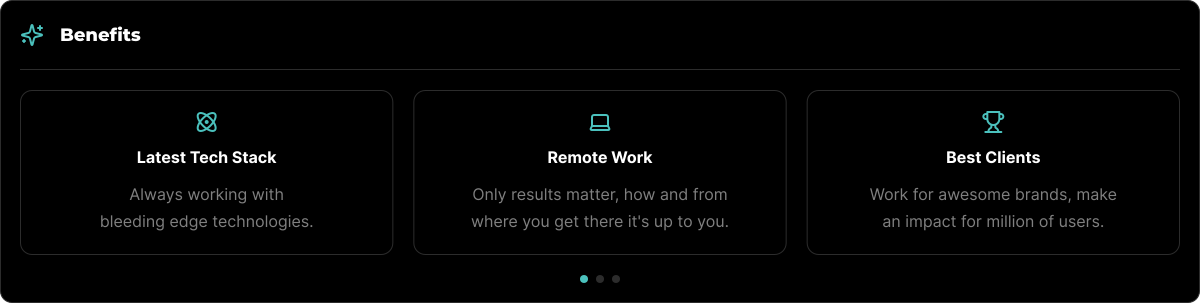
The Benefits Block is a versatile element that lets you showcase your company's perks and benefits in a list format. You can add as many benefits as you'd like, with each benefit requiring an icon, title, and description.
## Edit Mode
In edit mode, you will see some additional options available to you.
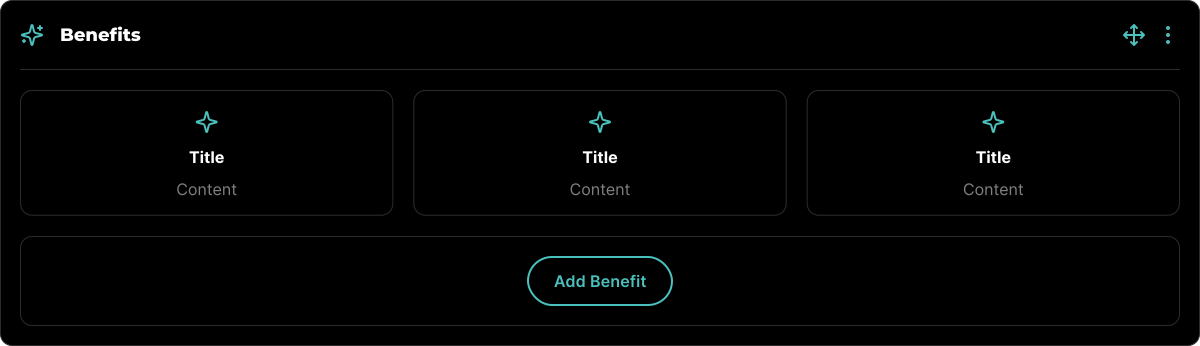
To delete an individual benefit, simply hover over the desired benefit and click the Trash icon that appears. This action will remove the selected benefit from the block.
All blocks, including Benefits Blocks, can be visually rearranged using a simple drag-and-drop interface via the icon. This allows for easy organization and customization of your content layout.
## Block Options
Each block comes with a set of features accessible through the three-dot icon located in the top right corner. This icon is visible when the block is in Edit mode, among other scenarios.
### Available Options
Within the block's options menu, you can:
- Toggle between half-width or full-width block.
- Move the block up.
- Move the block down.
- Make the block reusable for future use.
- Delete the block if it's no longer needed.

Learn more about Team Block, with all its features.
Learn more about Contact Person Block, with all its features.
---
# Team Block
> Learn about the Team Block for showcasing team members in VIDEOJOBS.
Source: https://docs.videojobs.io/team-block
# Team Block
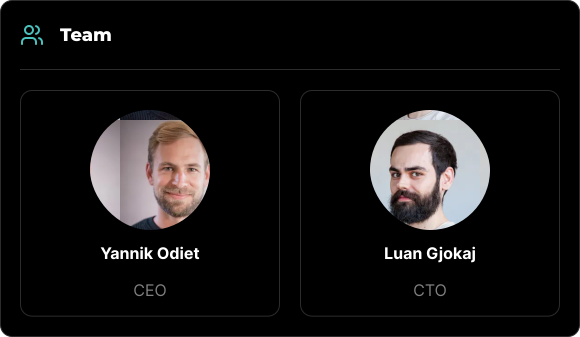
The Team Block is an element designed to showcase your team members. You can add as many team members as you'd like, with each member featuring a profile picture, name, and title.
## Edit Mode
In edit mode, you will see some additional options available to you.
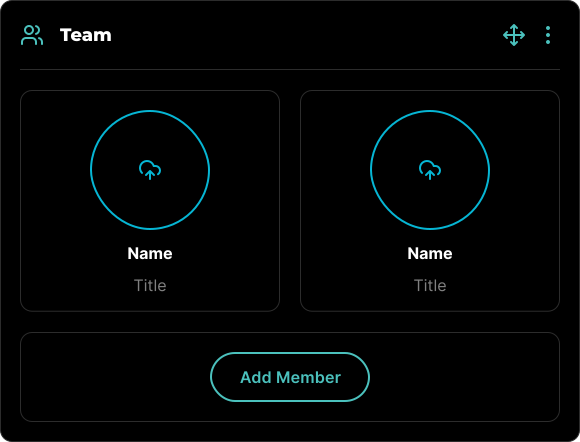
To delete an individual member, simply hover over the desired member and click the Trash icon that appears. This action will remove the selected team member from the block.
All blocks, including Team Blocks, can be visually rearranged using a simple drag-and-drop interface via the icon. This allows for easy organization and customization of your content layout.
## Block Options
Each block comes with a set of features accessible through the three-dot icon located in the top right corner. This icon is visible when the block is in Edit mode, among other scenarios.
### Available Options
Within the block's options menu, you can:
- Toggle between half-width or full-width block.
- Move the block up.
- Move the block down.
- Make the block reusable for future use.
- Delete the block if it's no longer needed.

Learn more about Contact Person Block, with all its features.
Learn more about Location Block, with all its features.
---
# Contact Person Block
> Learn about the Contact Person Block for highlighting job contacts in VIDEOJOBS.
Source: https://docs.videojobs.io/contact-person-block
# Contact Person Block
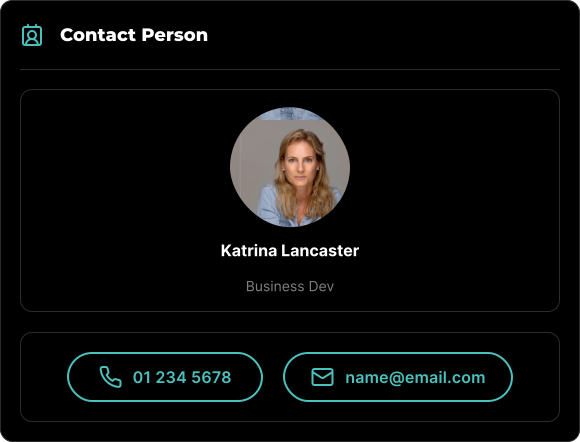
The Contact Person Block is an element specifically designed to highlight the individual responsible for the job ad. This block allows you to include a profile image, name, and title, along with contact details such as a phone number and email address, so candidates can easily reach out.
## Edit Mode
In edit mode, you will see some additional options available to you.
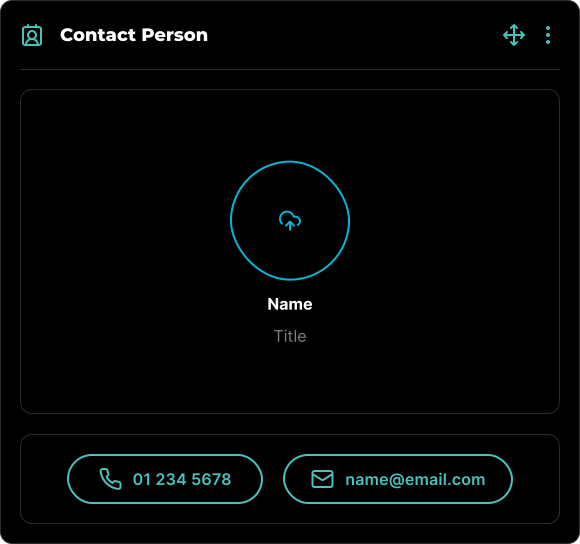
All blocks, including Contact Person Blocks, can be visually rearranged using a simple drag-and-drop interface via the icon. This allows for easy organization and customization of your content layout.
## Block Options
Each block comes with a set of features accessible through the three-dot icon located in the top right corner. This icon is visible when the block is in Edit mode, among other scenarios.
### Available Options
Within the block's options menu, you can:
- Toggle between half-width or full-width block.
- Move the block up.
- Move the block down.
- Make the block reusable for future use.
- Delete the block if it's no longer needed.

Learn more about Location Block, with all its features.
Learn more about Reusable Blocks, with all its features.
---
# Location Block
> Learn about the Location Block for displaying Google Maps locations in VIDEOJOBS.
Source: https://docs.videojobs.io/location-block
# Location Block
The Location Block integrates a Google Map to display a specific location. Simply type the address and select it from the auto-suggest list. You can adjust the map's zoom level using the Options Menu.
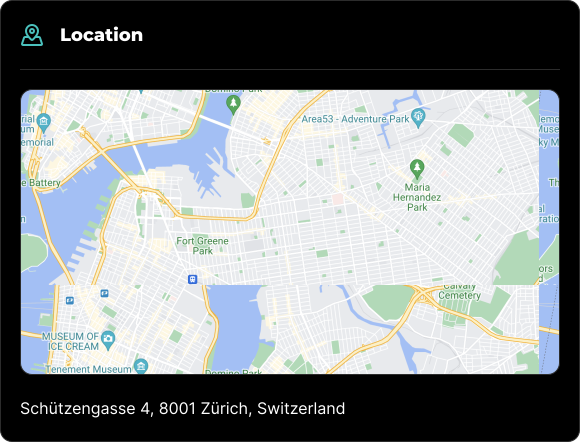
## Edit Mode
In edit mode, you will see some additional options available to you.
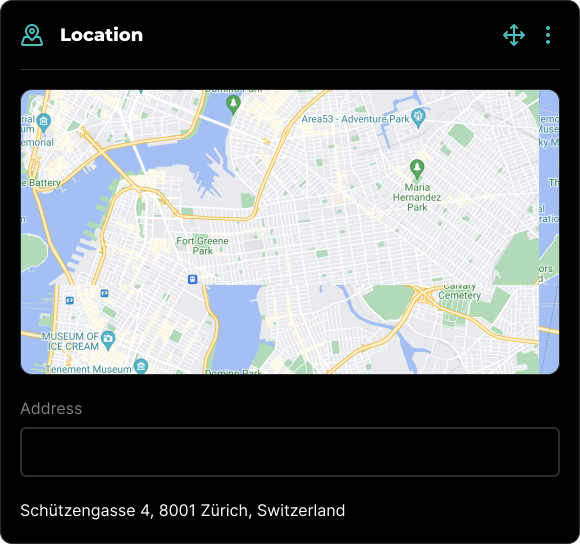
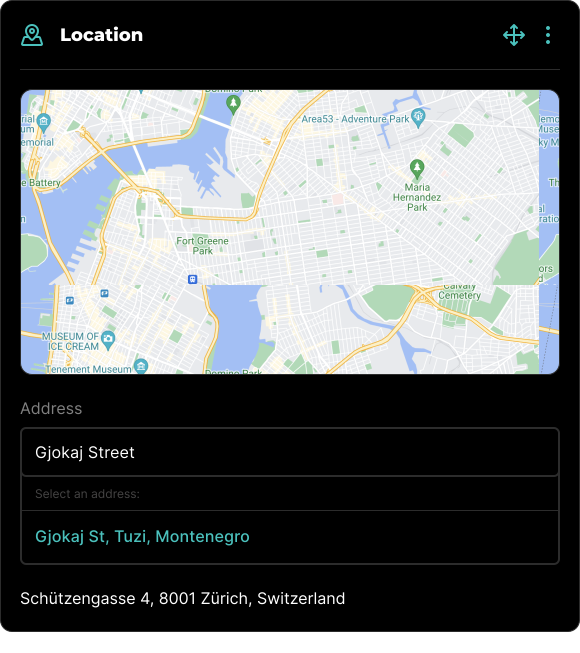
You type the address in the input field below the map. A list of suggested addresses will appear as you type. You can select an address from the list and the pin will automatically move to the selected location.
All blocks, including Location Blocks, can be visually rearranged using a simple drag-and-drop interface via the icon. This allows for easy organization and customization of your content layout.
## Block Options
Each block comes with a set of features accessible through the three-dot icon located in the top right corner. This icon is visible when the block is in Edit mode, among other scenarios.
### Available Options
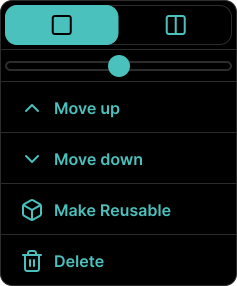
Within the block's options menu, you can:
- Toggle between half-width or full-width block.
- Slider to adjust the map zoom level.
- Move the block up.
- Move the block down.
- Make the block reusable for future use.
- Delete the block if it's no longer needed.
Learn more about Reusable Blocks, with all its features.
Learn more about Integrations, with all its features.
---
# Reusable Blocks
> Learn how to create and manage reusable blocks across your VIDEOJOBS content.
Source: https://docs.videojobs.io/reusable-blocks
# Reusable Blocks
A Reusable Block can be any type of block, such as a gallery, video, or any other block you'd like to use multiple times. To make a block reusable, select the option from the Block Options Menu. You can then add this reusable block from the list whenever needed.
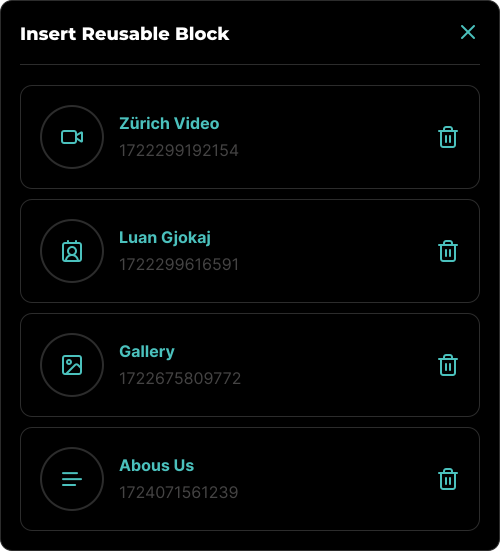
To delete a Reusable Block, click the Trash icon on the desired block. This will permanently delete the block along with any associated media. If this block was part of a content block, the media linked to it will be broken upon deletion.
Once a Reusable Block is inserted into your content, it behaves like any other block. However, unlike regular blocks, the media associated with a Reusable Block does not get deleted when the block is removed from the content. To delete the associated media, you must delete the block from the Reusable Blocks Modal.
Learn more about Integrations, with all its features.
Learn more about how you can Embed on Job Boards.
---
# Integrations
> Overview of VIDEOJOBS embedding and integration options for websites and job boards.
Source: https://docs.videojobs.io/integrations
# Integrations
The [VIDEOJOBS](https://www.videojobs.io) platform is designed with a user-centric approach, providing you with the flexibility to integrate its core features anywhere on the web. Whether on your company website, a job board, or social media, you can seamlessly extend the platform's capabilities.
## Embedding Options
We offer you the ability to:
- [Embed on Job Boards](/embed-on-job-boards)
- [Embed Open Positions](/embed-open-positions)
- [Embed Video Blocks](/embed-video-blocks)
- [Embed Image Blocks](/embed-image-blocks)
These elements can be embedded on any job board or website. Additionally, you have the option to share direct links to these elements, making it easy to distribute your content across various platforms.
## Video
Learn more about how you can Embed on Job Boards.
Learn more about how you can Embed Open Positions.
---
# Embed on Job Boards
> Learn how to share and embed VIDEOJOBS job ads on any website or job board.
Source: https://docs.videojobs.io/embed-on-job-boards
# Embed on Job Boards
All Job Ads on our platform can be shared or embedded on any website. However, depending on the job board where you want to publish the ad, you may need to confirm whether the job board supports embedding iframes.
## How to Integrate a Job Ad
Go to the desired Job Ad you want to share.
Click the **Share** button located in the top right corner.
You will see an interface that provides you with sharing options, including an embed code.
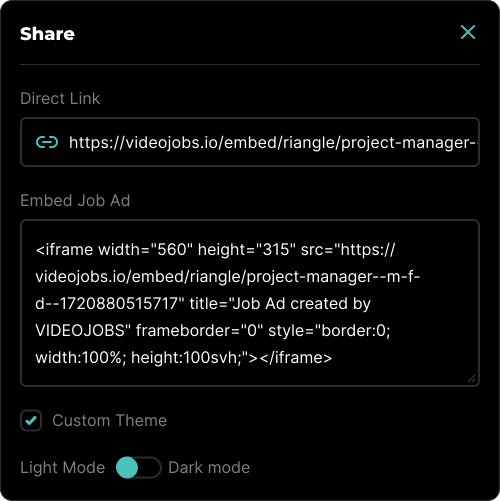
### Sharing Options
- **Direct Link:** This option removes the VIDEOJOBS header and footer, allowing the shared link to focus solely on the job ad content.
- **Embed Job Ad:** This provides the code necessary to embed the Job Ad on any website.
- **Custom Theme:** You can enforce a specific theme, either light or dark, to match the design of your website or platform.
Learn more about how you can Embed Open Positions.
Learn more about how you can Embed Video Blocks.
---
# Embed Open Positions
> Learn how to share and embed all your open positions on any website.
Source: https://docs.videojobs.io/embed-open-positions
# Embed Open Positions
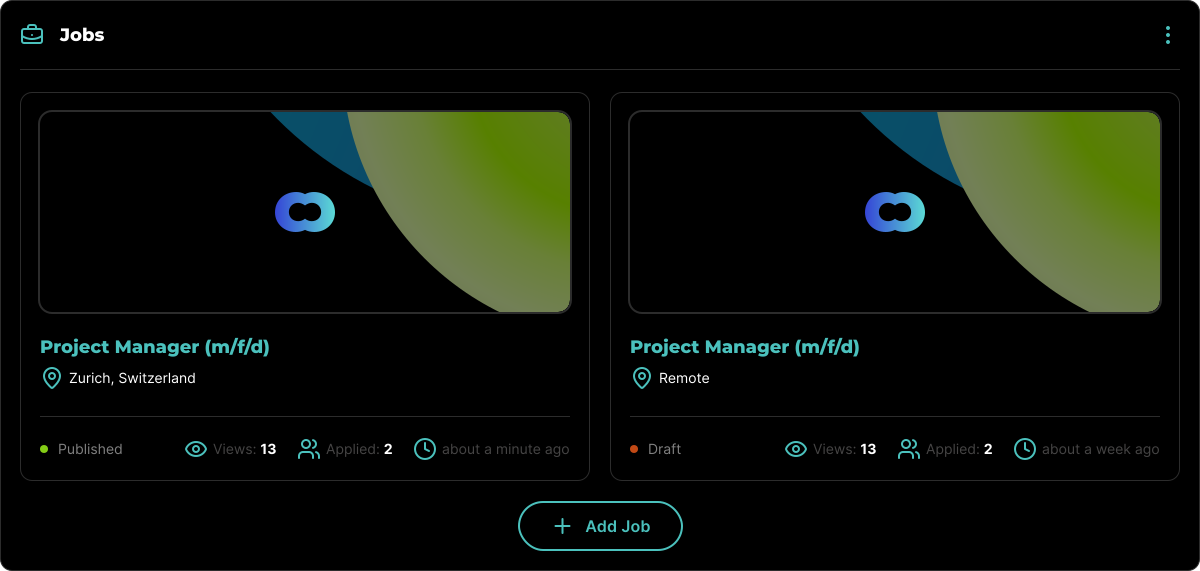
You can easily share all your open positions on any website or social media platform. To do this, navigate to your Home Page or Company Profile, and click on the three-dot icon located in the top right corner of the Jobs block.
## How to Integrate Open Positions
Go to the Home Page or Company Profile.
Click the **Share** button located in the top right corner of the Jobs block.
You will see an interface that provides you with sharing options, including an embed code.
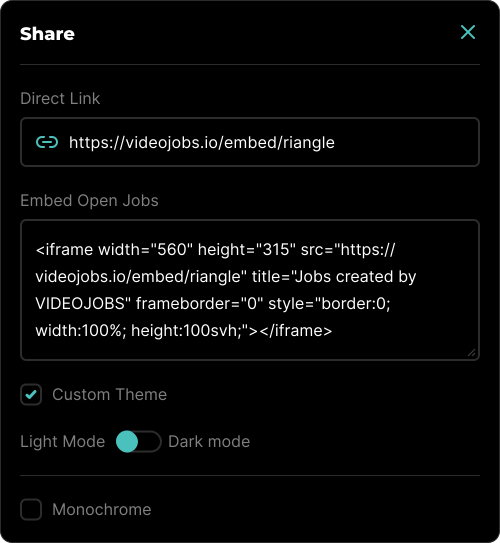
### Sharing Options
- **Direct Link:** This option removes the VIDEOJOBS header and footer, allowing the shared only the open positions.
- **Embed Open Jobs:** This provides the code necessary to embed all open positions on any website.
- **Custom Theme:** You can enforce a specific theme, either light or dark, to match the design of your website or platform.
- **Monochrome:** This option removes all VIDEOJOBS branding colors, presenting the open positions in a more neutral manner.
Learn more about how you can Embed Video Blocks.
Learn more about how you can Embed Image Blocks.
---
# Embed Video Blocks
> Learn how to share and embed individual video blocks from VIDEOJOBS.
Source: https://docs.videojobs.io/embed-video-blocks
# Embed Video Blocks
Each Video Block can be shared and embedded independently wherever it is posted. You can easily integrate it into your website or share it on social media.

## How to Integrate a Video Block
Go to the desired Video Block you want to share.
Click the **Share** button located in the top right corner.
An interface will appear, providing you with sharing options, including an embed code.
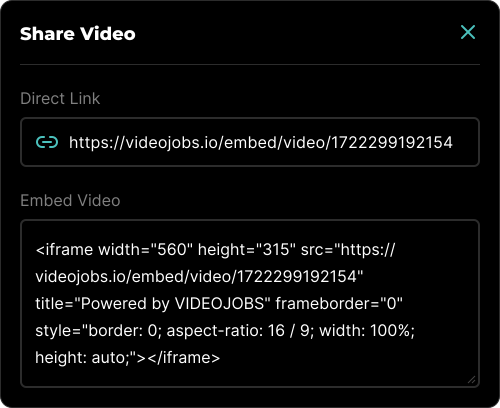
### Sharing Options
- **Direct Link:** This option will give you a direct link to the video.
- **Embed Video:** This provides the code necessary to embed the chosen video on any website.
Learn more about how you can Embed Image Blocks.
Learn more about Account, with all its features.
---
# Embed Image Blocks
> Learn how to share and embed individual image blocks from VIDEOJOBS.
Source: https://docs.videojobs.io/embed-image-blocks
# Embed Image Blocks
Each Image Block can be shared and embedded independently wherever it is posted. You can easily integrate your gallery of images into your website or share it on social media.

## How to Integrate an Image Block
Go to the desired Image Block you want to share.
Click the **Share** button located in the top right corner.
An interface will appear, providing you with sharing options, including an embed code.
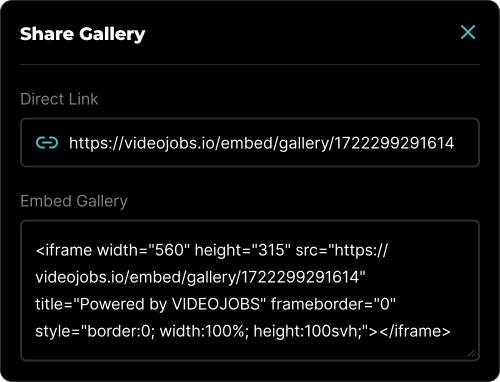
### Sharing Options
- **Direct Link:** This option will give you a direct link to the image gallery.
- **Embed Image:** This provides the code necessary to embed the chosen image block on any website.
Learn more about Account, with all its features.
Learn more about Team Accounts, with all its features.
---
# Account
> Manage your personal and company information on VIDEOJOBS.
Source: https://docs.videojobs.io/account
# Account
The Account page is where you can manage all your personal information. If you are the super admin, you'll also find the Company Information section here. If you're a member, you can request access to an existing company profile from this page.
```
https://www.videojobs.io/account
```
- [Team Accounts](/team-accounts)
- [Billing](/billing)
- [Security](/security)
- [Support](/support)
## Personal Information
- **Email:** The email address you provided during sign-up.
- **Full Name:** Your full name as entered in your profile.
## Company Information
- **Profile Image:** Upload a profile image for your company.
- **Company Page URL:** Set the web address for accessing your company's profile (e.g., my-company-name).
- **Company Website:** Enter the full URL of your company's website, including the protocol (e.g., https://www.videojobs.io).
- **Location:** Specify the headquarters of your company.
- **Team Size:** Indicate the number or range of employees in your company.
- **Categories:** Your company can be associated with up to 3 categories.
- **Bio:** A short description of your company, displayed if set.
- **Mission:** A brief description of your company's vision, displayed if set.
Learn more about Team Accounts, with all its features.
Learn more about Billing, with all its features.
---
# Team Accounts
> Learn how to manage team accounts and multi-user access on VIDEOJOBS.
Source: https://docs.videojobs.io/team-accounts
# Team Accounts
Your company can have unlimited management accounts, allowing multiple team members to add job ads and manage content. To enable others to contribute, they can simply [Create an Account](/create-account) and request access to your company profile.
## Request Access
To request access to your company's account:
Navigate to the [Account](/account) page.
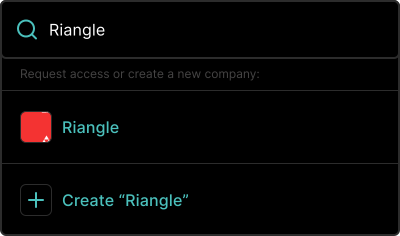
In the Company Information section, type the name of your company and select it from the list.
Ask the company super admin to accept your access request.
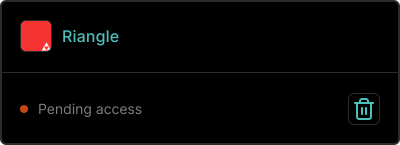
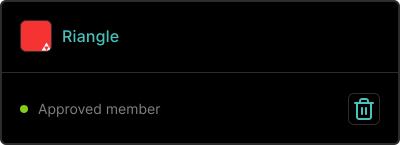
Once you have requested access, you will see the pending status until the super admin accepts or rejects your request.
Once the super admin accepts your request, your status will change to **Approved member** and you will be able to publish and edit content.
## Manage Users
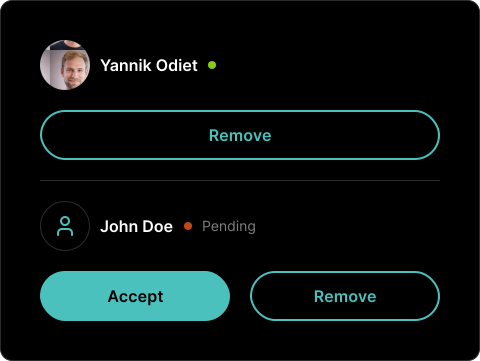
As a super admin, you have the ability to accept, reject, or revoke access for any user. You can manage these permissions at the bottom of the Account page.
## Video
Learn more about Billing, with all its features.
Learn more about Security, with all its features.
---
# Billing
> Manage your VIDEOJOBS subscription and billing through Stripe.
Source: https://docs.videojobs.io/billing
# Billing
You can access the Billing page by navigating to the header menu and selecting "Subscription". On this page, you can view and manage your active subscription. Our billing is handled through Stripe, so you will be redirected to their portal for payment processing and account management.
```
https://www.videojobs.io/account/subscription
```
## Video
Learn more about Security, with all its features.
Support page with contact information.
---
# Security
> Security information and password reset instructions for VIDEOJOBS.
Source: https://docs.videojobs.io/security
# Security
If you encounter any security issues or have concerns, please feel free to contact us. You can reset your account password if you signed up using your email address.
## How to Reset Your Password
Navigate to the [reset password](https://www.videojobs.io/login/reset) page.
Enter your email address.
Check your email for a reset link and follow the instructions.
Enter a new password.
You're all set!
Support page with contact information.
Learn more about VIDEOJOBS, with all its features.
---
# Support
> Get help and support for VIDEOJOBS via contact page or Discord.
Source: https://docs.videojobs.io/support
# Support
If you have any issues, questions, or need assistance with anything, please don't hesitate to reach out.
You can contact us directly through the [Contact](https://www.videojobs.io/contact) page, or by joining our [Discord](https://discord.gg/fNGNsqwqjZ) server.
Learn more about VIDEOJOBS, with all its features.
Let's get started by creating an account.