# Team Accounts
> Learn how to manage team accounts and multi-user access on VIDEOJOBS.
Source: https://docs.videojobs.io/team-accounts
> For the complete documentation index, see [llms.txt](https://docs.videojobs.io/llms.txt).
# Team Accounts
Your company can have unlimited management accounts, allowing multiple team members to add job ads and manage content. To enable others to contribute, they can simply [Create an Account](/create-account) and request access to your company profile.
## Request Access
To request access to your company's account:
Navigate to the [Account](/account) page.
In the Company Information section, type the name of your company and select it from the list.
Ask the company super admin to accept your access request.
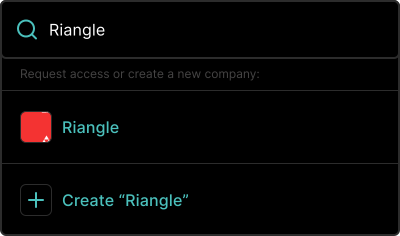
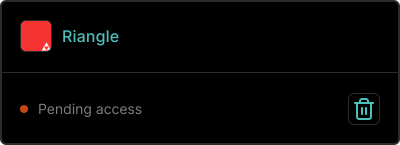
Once you have requested access, you will see the pending status until the super admin accepts or rejects your request.
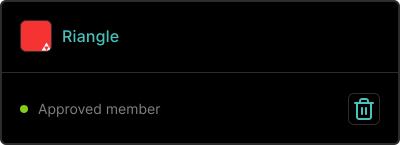
Once the super admin accepts your request, your status will change to **Approved member** and you will be able to publish and edit content.
## Manage Users
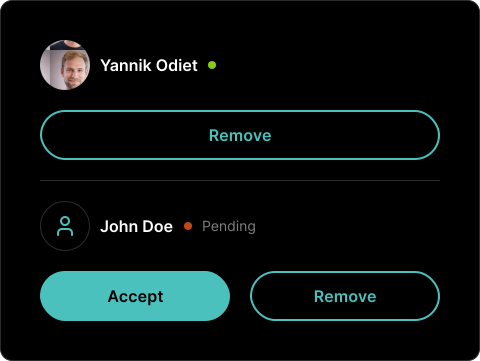
As a super admin, you have the ability to accept, reject, or revoke access for any user. You can manage these permissions at the bottom of the Account page.
## Video
Learn more about Billing, with all its features.
Learn more about Security, with all its features.