# Text Block
> Learn about the Text Block element for creating and managing text content in VIDEOJOBS.
Source: https://docs.videojobs.io/text-block
> For the complete documentation index, see [llms.txt](https://docs.videojobs.io/llms.txt).
# Text Block
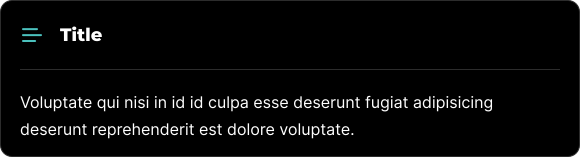
The Text Block is a fundamental element that enables you to create and manage blocks of text.
## Edit Mode
In edit mode, you will see some additional options available to you.
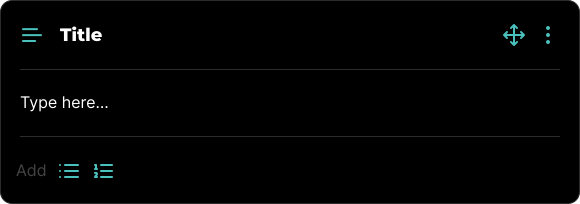
Within a Text Block, you have the flexibility to format content with unordered or ordered lists using the and icons.
All blocks, including Text Blocks, can be visually rearranged using a simple drag-and-drop interface via the icon. This allows for easy organization and customization of your content layout.
## Block Options
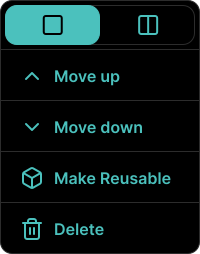
Each block comes with a set of features accessible through the three-dot icon located in the top right corner. This icon is visible when the block is in Edit mode, among other scenarios.
### Available Options
Within the block's options menu, you can:
- Toggle between half-width or full-width block.
- Move the block up.
- Move the block down.
- Make the block reusable for future use.
- Delete the block if it's no longer needed.
Learn more about Image Block, with all its features.
Learn more about Video Block, with all its features.